How Marketplace Sellers Can Process Shipping Labels Faster Using a PDF Label Tool
Marketplace sellers can receive shipping labels containing multiple labels, marketplace information and courier details. When order volumes increase, manually organizing these labels can add unnecessary steps to the fulfillment process. GenImager's Label Crop Tool helps sellers process shipping-label PDFs by cropping labels organizing them according to available options, filtering courier-related labels, arranging labels on A4 layouts and downloading the processed PDF.
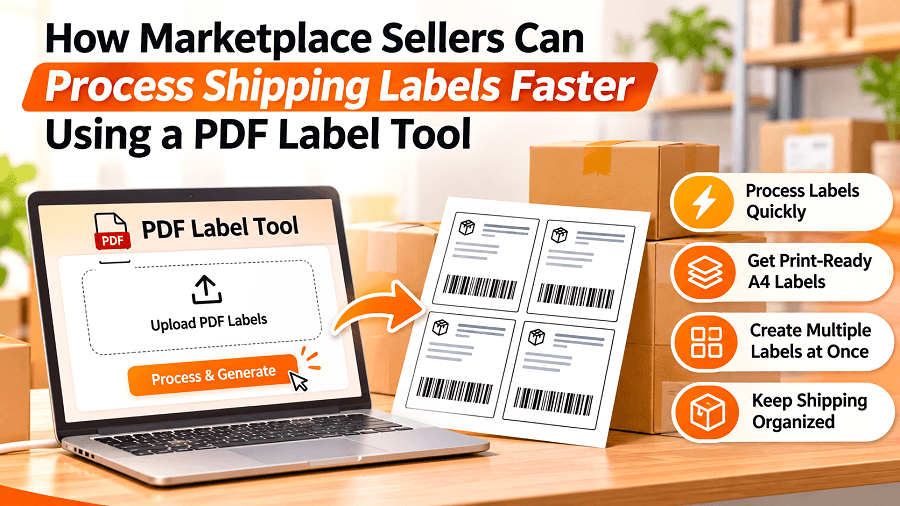
Marketplace sellers can receive shipping labels containing multiple labels, marketplace information and courier details. When order volumes increase, manually organizing these labels can add unnecessary steps to the fulfillment process.
GenImager's Label Crop Tool helps sellers process shipping-label PDFs by cropping labels organizing them according to available options, filtering courier-related labels, arranging labels on A4 layouts and downloading the processed PDF.
The Challenge
Managing Multiple Shipping Labels
Handling a large PDF containing multiple shipping labels can make it harder to locate organize and prepare individual labels for fulfillment.
Working With Different Courier Labels
Marketplace orders may be handled by different courier partners. Sorting labels by courier can help sellers organize their fulfillment workflow when the tool's available courier options match their shipments.
Preparing Labels for Printing
Sellers may also need to arrange labels into suitable A4 layouts rather than working with the original PDF format.
How GenImager Can Help
1. Upload the Shipping Label PDF
Upload the shipping-label PDF into the Label Crop Tool. The tool provides a dedicated workflow for processing marketplace shipping labels.
2. Select the Processing Options
Choose the available crop and sorting options based on how you want the labels organized. Courier filtering can also be used where applicable.
3. Choose an A4 Layout
Select the available A4 arrangement, including automatic layout or supported options such as 2, 4 or 8 labels per page.
4. Process and Download the Labels
Process the labels using the selected settings and download the resulting PDF for the next step in your fulfillment workflow.
What You Can Create / Accomplish
The shipping-label workflow can help sellers:
Crop marketplace shipping labels
Organize labels using available sorting options
Filter supported courier labels
Arrange labels on A4 pages
Select the number of labels per A4 page
Process copies where required
Download processed shipping-label PDFs
This can reduce repetitive manual handling when preparing marketplace shipping labels.
Supported Courier Workflows
The tool provides courier-filter options for supported carriers, including:
Ecom Express
Delhivery
Shadowfax
Valmo
XpressBees
Available marketplace, courier, crop and layout options should be checked in the tool before processing a particular PDF.
Managing multiple marketplace shipping labels? Use GenImager’s Label Crop Tool to organize and prepare labels for your fulfillment workflow.