AI Ghost Mannequin
Turn your garment sketch or reference photo into realistic, dimensional product photography with an invisible mannequin.
See the ghost mannequin style
Present clothing with its natural shape and volume on a clean studio background, without a visible model.
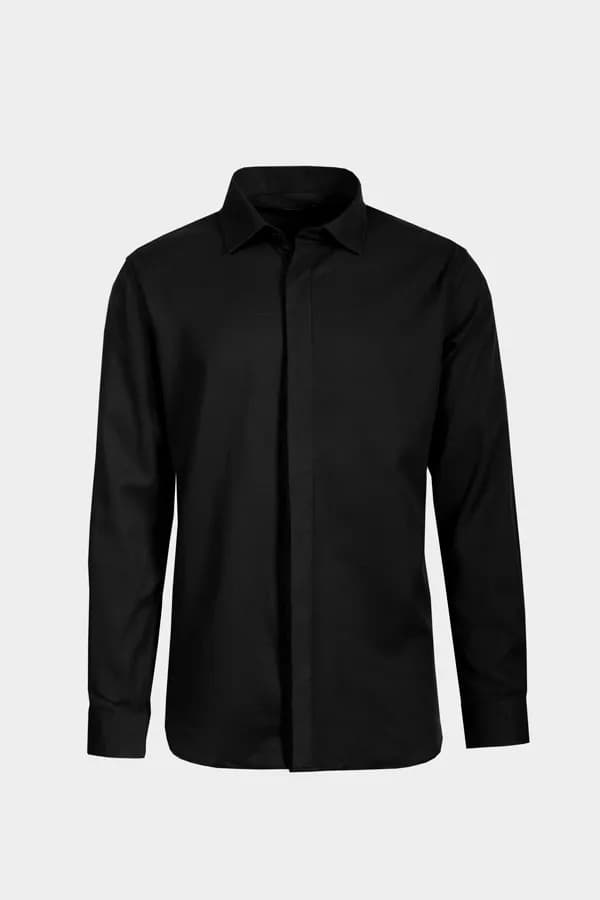
Upload your garment
Your garment reference is automatically processed with instructions to preserve its design and create realistic fabric, natural folds, studio lighting, and a clean background.
Ghost mannequin result
Upload a clear garment sketch or photo, then generate your ghost mannequin image.
About AI Ghost Mannequin Generator
Create clothing product photos with the shape of a worn garment and an invisible mannequin. Upload your garment image and GenImager automatically applies its default ghost mannequin instructions. You do not need to write or choose a prompt.
How it works
- Choose a clear garment sketch or reference photo. Upload one JPG, PNG, or WebP file no larger than 10MB.
- Sign in, then select Generate ghost mannequin. The default prompt is applied automatically and generation uses your account’s image allowance.
- Wait for the result, then compare it with the original garment before downloading. Generated images are also saved in Image Generation History.
Supported options and access
Upload one JPG, PNG, or WebP garment sketch or photo, up to 10MB. Each request creates one image using the default ghost mannequin style. Sign-in is required to generate. Your plan controls the image allowance, and non-premium outputs include GenImager’s watermark.
See current pricing and plan limits before generating.
Example workflow: an embroidered dress
Upload a clear front-view photo of a dress with visible straps, embroidery, and hem. Generate one result and compare those details against the source. The intended output is a dimensional dress without a visible wearer, on a clean studio background.
This is an illustrative workflow, not a demonstrated before-and-after result or a guarantee. If a body or mannequin remains visible, or the embroidery changes, the result needs another attempt or manual editing.
Practical tips
- Keep the entire garment in frame, including thin straps, cuffs, and the hem. A cropped source cannot reliably show missing details.
- Use an evenly lit reference with a simple background so fabric edges and patterns are easier to distinguish.
- Check necklines and armholes for leftover mannequin parts, and inspect buttons, seams, colors, and embroidery before using a result in a product listing.
Frequently asked questions
What files can I upload?
Upload one JPG, PNG, or WebP garment image per request. The file must be no larger than 10MB. A garment sketch or reference photo can be used.
Do I need to provide a prompt?
No. GenImager applies its default ghost mannequin prompt automatically to your uploaded garment image. You cannot change the prompt on this page.
Will every garment detail be preserved?
The prompt asks the AI to preserve visible garment details, but AI output can change fine details or leave mannequin parts visible. Compare the result with the reference and check patterns, seams, colors, straps, and openings before publishing.
Is ghost mannequin generation free?
Generation requires a signed-in account and is subject to your plan’s image allowance. GenImager offers a free plan and paid plans; current prices and allowances are listed on the pricing page. This tool does not provide unlimited free generation.
Where can I find and download my result?
Use the download control below the generated image. Successfully generated images are also saved in your account’s Image Generation History. If a request takes longer than expected, check history before starting another generation.