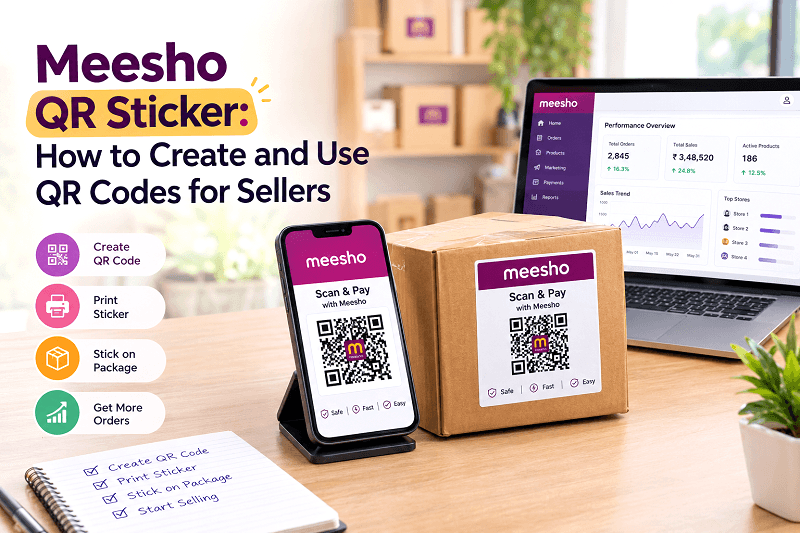
Selling on Meesho involves more than adding products and managing orders. Sellers also need to handle shipping labels, customer communication, store promotion, and daily order processing. A simple QR code can help connect a physical shipping label with your Meesho store and make it easier for customers to find you again.
A Meesho QR Sticker is a practical way to place a QR code linked to your store on your shipping labels. With the right tool, sellers can create QR stickers, process multiple label PDFs, merge files, and prepare them for printing without manually editing every label.
GenImager's Meesho QR Sticker Tool is designed for this workflow. It lets sellers add store links, generate QR stickers, upload labels from multiple stores, automatically match labels to the right store, and export a combined print-ready PDF and Excel order report.
What Is a Meesho QR Sticker?
A Meesho QR Sticker is a QR code placed on a Meesho shipping label that can direct a customer to a seller's Meesho store when scanned.
Instead of typing a store link manually, a customer can scan the QR code with a compatible smartphone camera and open the linked store page.
For sellers, this can provide a simple connection between an order and their online storefront.
A QR sticker can be useful for:
Connecting customers to your Meesho store
Making your store link easier to access
Adding a digital touchpoint to shipping labels
Supporting repeat customer discovery
Managing QR codes across multiple store accounts
The QR code itself does not change the shipping label's purpose. It adds an additional digital connection to the seller's store.
Why Are Meesho QR Stickers Useful for Sellers?
Managing orders manually can become repetitive when you process multiple shipping labels every day. Creating individual QR codes, editing PDFs, arranging labels, and preparing files for printing can take unnecessary time.
A meesho qr code sticker tool can simplify these steps by bringing QR creation and label processing into one workflow.
The main benefits include:
1. Easier Store Access
A QR code gives customers a convenient way to reach your store without manually entering a URL.
2. Less Manual PDF Editing
Instead of opening every label and adding a QR image separately, an automated tool can apply the QR sticker to the required labels.
3. Better Multi-Store Management
If you operate multiple Meesho stores, matching the correct QR code to the correct label can become difficult. GenImager can process labels from multiple store accounts together and automatically match each label to the appropriate account.
4. Cleaner Printing Workflow
The QR sticker is automatically placed near the bottom-center of each label, so sellers do not need to manually position it on every page.
5. Easier Order Reporting
After processing, the tool can generate an Excel order report along with the combined PDF, giving sellers another useful output for their workflow.
How to Create a Meesho QR Sticker
Creating a QR sticker does not need to be complicated. A straightforward workflow can be completed in a few steps.
Step 1: Add Your Meesho Store Link
Start by adding the link to your Meesho store.
If you manage more than one store account, you can add multiple store links. The links are saved in your browser for your next visit. You can also add an optional sticker message, such as a short thank-you note.
Step 2: Generate Your QR Stickers
After adding your store link, select Generate QR Stickers.
The tool creates QR codes connected to the store links you provided.
This means you do not have to manually create and download a separate QR image for every store.
Step 3: Upload Your Shipping Labels
Next, upload your Meesho shipping-label PDFs.
GenImager allows sellers to upload labels from different store accounts together. The tool automatically matches each label with the appropriate store account.
Step 4: Apply the QR Sticker
The QR sticker is automatically added near the bottom-center of each shipping label.
There is no need to manually drag, resize, or position the QR code on individual pages.
Step 5: Merge and Download
After applying the stickers, the tool processes the labels, removes extra invoice-only pages, sorts the labels by courier and SKU, and combines them into a print-ready PDF.
It also generates an Excel order report.
What Is a Meesho QR Sticker Tool?
A Meesho QR Sticker Tool is software that automates the process of creating QR codes and adding them to Meesho shipping-label PDFs.
Without a dedicated tool, a seller may need to:
Find the store URL.
Create a QR code.
Download the QR image.
Open a shipping-label PDF.
Add the QR code manually.
Adjust its position.
Repeat the process for multiple labels.
Merge the final files.
A dedicated tool combines many of these tasks into one workflow.
For sellers processing multiple orders, reducing repetitive PDF editing can make daily shipping preparation easier.
What Is a Meesho Label QR Code Used For?
A Meesho Label QR Code can connect a physical shipping label with a digital store page.
For example, a customer receives an order and notices the QR code on the label. After scanning it, the code can take them to the seller's Meesho store.
This creates a simple bridge between the physical order experience and the seller's digital storefront.
However, sellers should avoid treating QR codes as a guarantee of repeat purchases. A QR code makes the store easier to access, but the customer's experience, product quality, pricing, service, and store reputation still influence whether they return.
Meesho Shipping Label QR Sticker: What Makes a Good Workflow?
A useful Meesho Shipping Label QR Sticker workflow should make the process simple, consistent, and easy to repeat.
Look for features such as:
Multiple store support
Automatic label matching
Fixed QR placement
PDF processing
PDF merging
Print-ready output
Order reporting
Browser-based processing
Clear free and paid features
GenImager's tool supports these core label-processing functions and allows sellers to process labels from multiple stores together.
Can You Use the Meesho QR Sticker Tool for Multiple Stores?
Yes.
If you sell through multiple Meesho store accounts, you can add each store link before uploading your shipping-label PDFs.
The tool can then match labels to the appropriate store account automatically. This can be particularly helpful for sellers who manage multiple catalogs or storefronts.
Instead of creating separate workflows for each store, you can process labels together.
Is the Meesho QR Sticker Tool Free?
GenImager's Meesho QR Sticker Tool offers its core QR sticker and label-processing functionality for free.
The free functionality includes:
QR sticker creation
Label processing
PDF merging
Excel order reports
This distinction is important because sellers who only need QR creation and label processing may not need the paid features.
Sellers who want to understand QR activity can use the paid analytics features to measure scans and compare store performance.
What Are the Benefits of QR Scan Analytics?
For sellers who want more information than simply creating a QR code, tracking can provide additional insight.
With the paid QR insights functionality, sellers can view:
Total scans
Daily scans
Store-wise performance
Activity over time
Three months of scan history
This can help sellers understand whether their QR stickers are generating measurable engagement with their store.
One important point: scans made while using free, untracked QR codes cannot be recovered later. If you want to collect analytics, you need to create and use a tracked QR sticker after upgrading.
Are Meesho QR Stickers Safe to Use?
The QR code itself simply directs the scanner to the store link associated with it. Sellers should always make sure the destination URL is correct before generating their stickers.
GenImager states that label processing happens in the browser and uploaded label files are not sent to the server for processing.
For sellers, this browser-based approach can be useful when working with shipping-label PDFs.
As with any QR code, verify the destination before printing a large batch of labels.
Common Mistakes to Avoid With Meesho QR Codes
Using the Wrong Store Link
Always check that the QR code points to the correct Meesho store.
Creating Untracked QR Codes When Analytics Are Needed
If you want scan data, use tracked QR functionality from the beginning. Existing scans from free QR codes cannot be recovered after upgrading.
Manually Editing Every Label
Manual editing can increase the chance of inconsistent QR placement. Automated processing can provide a more consistent result.
Ignoring Print Quality
Always check the final PDF before printing. Make sure the QR code is clear and positioned properly.
Expecting a QR Code to Guarantee Repeat Orders
A QR code makes store access easier, but it cannot guarantee additional sales or repeat orders. Customer experience still matters.
How Meesho Tools Can Simplify Seller Workflows
QR stickers are only one part of the seller workflow.
Other Meesho tools can help with catalog images, shipping labels, product presentation, and financial tracking.
GenImager's Meesho Seller Tools collection currently includes a Meesho Profit & Loss Calculator, Meesho Image Variant Generator, Meesho QR Sticker Tool, and Label Crop Tool.
This creates a broader workflow:
Create better product visuals → Prepare labels → Add QR stickers → Process orders → Review performance
For sellers managing many daily tasks, having related tools in one place can reduce the need to switch between multiple services.
Final Thoughts: Make Meesho Shipping More Organized With QR Stickers
A Meesho QR Sticker is a simple way to connect shipping labels with your Meesho store. For sellers processing multiple orders, automating QR creation, label processing, PDF merging, and reporting can make the workflow easier to manage.
If you only need basic QR sticker creation, the free functionality can handle the core task. If you want measurable scan data, store comparisons, and QR performance insights, the paid tracking features provide additional value.
Ready to Create Your Meesho QR Sticker?
Stop manually editing shipping labels. Create your QR sticker, process your Meesho labels, merge your files, and prepare a print-ready PDF with GenImager.
Try the GenImager Meesho QR Sticker Tool today and simplify your Meesho shipping workflow.
Frequently Asked Questions
1. What is a Meesho QR Sticker?
A Meesho QR Sticker is a QR code linked to a seller's Meesho store and added to a shipping label. Customers can scan the code to access the linked store.
2. How do I create a Meesho QR Sticker?
Add your Meesho store link to a QR sticker tool, generate the QR code, upload your shipping-label PDFs, apply the sticker, and download the processed PDF.
3. Can I add QR stickers to multiple Meesho labels?
Yes. GenImager allows sellers to upload multiple label PDFs and process labels from multiple store accounts together.
4. Where is the QR sticker placed on the shipping label?
The QR sticker is automatically placed near the bottom-center of the label, providing consistent placement without manual positioning.
5. Can I track QR code scans?
Yes. Tracked QR stickers and scan analytics are available with the paid functionality. You can view total and daily scans, store-wise performance, and three months of scan history.