How to Generate a Meesho QR Code for Your Store and Shipping Labels
Meesho sellers often manage product orders, shipping labels, packing slips, and dispatch tasks together. Preparing QR stickers manually can add extra work, especially when processing many orders or handling more than one store account. A structured workflow helps sellers organize these tasks and prepare labels for printing with fewer manual steps.
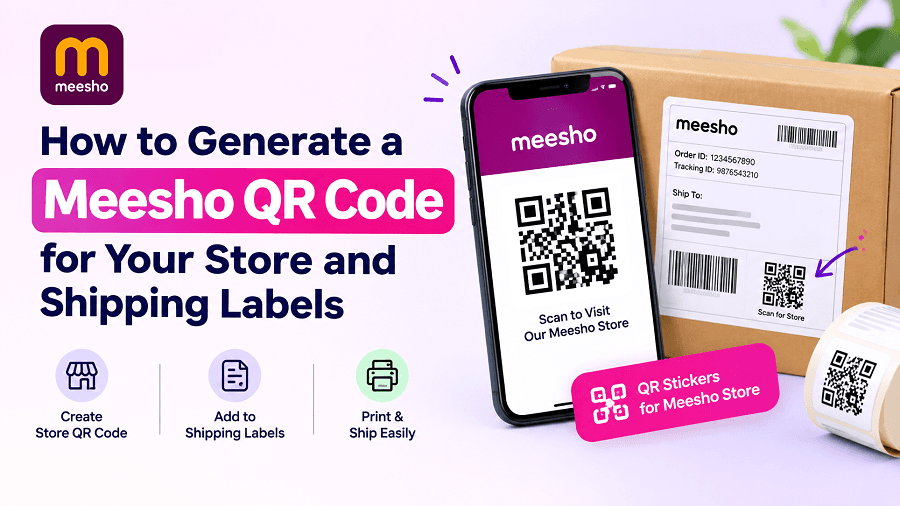
How do you generate a Meesho QR code for your store and shipping labels? You can create a QR code linked to your Meesho store and use a QR sticker tool to add it to shipping-label PDFs. For sellers handling multiple orders, a suitable tool can help match store QR codes with labels, combine files, and prepare print-ready documents.
Meesho sellers often manage product orders, shipping labels, packing slips, and dispatch tasks together. Preparing QR stickers manually can add extra work, especially when processing many orders or handling more than one store account. A structured workflow helps sellers organize these tasks and prepare labels for printing with fewer manual steps.
What Is a Meesho QR Code Generator?
A Meesho QR code generator is a tool that helps create or prepare a QR code associated with a Meesho store. Depending on the tool, sellers may generate a code for a store link or add an existing store QR code to shipping-label documents.
Why Do Meesho Sellers Use QR Stickers?
QR stickers can make store links easier to access when the code is scanned with a compatible device. For sellers, the main benefit of a QR sticker workflow is the ability to organize store QR codes and shipping-label files without handling every label individually.
Here are some practical reasons to use a QR sticker tool:
Faster label preparation: Process multiple shipping-label pages in a single workflow instead of editing each page manually.
Multiple store management: Keep QR codes associated with the correct store account when processing labels from different stores.
Organized printing: Combine processed labels into a single PDF when the tool supports PDF merging.
Simpler order records: Download an Excel report when available to help review processed orders.
Fewer manual placement tasks: Automatically position QR stickers on supported shipping labels instead of placing each code individually.
QR stickers are not a replacement for the shipping label's required information. Always keep the shipping address, barcode, order details, and other required elements readable.
How Can You Generate a QR Code for Your Meesho Store?
The process depends on whether you already have a store QR code or need to create one from a store URL. Follow these steps to prepare the code.
Step 1: Identify the Correct Store Link
Start by identifying the Meesho store link you want the QR code to open. Make sure the destination is correct and accessible to the intended audience.
If you are creating a code from a URL, use a QR code generator that supports URL input. You can also use the GenImager QR Code Generator for QR code creation.
Step 2: Generate or Obtain the QR Code
Enter the appropriate URL into a QR code generator and create the code. If you already have a valid QR code for your store, check that it opens the intended destination.
Do not assume that every Meesho account has an automatically generated public store QR code. The available store link and its accessibility depend on the account and the destination you want customers to visit.
Step 3: Test the QR Code Before Using It
Scan the QR code using a phone camera or a compatible QR scanner. Confirm that it opens the correct page and that the destination works without unexpected redirects.
Testing is particularly important when you manage multiple stores. A QR code linked to the wrong store can confuse users and reduce the usefulness of the sticker.
How Do You Add a QR Code to Meesho Shipping Labels?
Once your store QR code is ready, the next step is to prepare your shipping-label PDF. A dedicated label tool can simplify this process.
Step 1: Prepare Your Shipping-Label PDF
Download the shipping labels from your seller workflow and keep the original files available. Check that the documents contain the correct orders and that the label details are readable.
Use the original shipping-label files rather than recreating required shipping information from scratch.
Step 2: Open the Meesho QR Sticker Tool
Visit the GenImager Meesho QR Sticker Tool to get started. Upload your shipping-label PDF and follow the on-screen instructions to add store QR stickers, process labels, and prepare a print-ready PDF. If you manage multiple Meesho stores, check that the correct store QR code is matched to the relevant labels before downloading the final files.
Step 3: Upload and Process the Labels
Upload the supported shipping-label PDF files and follow the on-screen instructions. If you work with multiple store accounts, ensure that the correct store links or QR codes are associated with the appropriate labels.
Step 4: Download and Review the Output
Download the processed PDF and, where available, the accompanying Excel order report. Open the PDF and check a sample of pages before printing the entire batch.
Confirm that the QR codes are visible, the shipping details remain readable, and the pages are arranged correctly. If the tool provides PDF merging, verify that all expected labels appear in the combined file.
How Can Sellers Manage QR Stickers for Multiple Meesho Stores?
Sellers managing more than one store need to pay particular attention to QR code matching. A consistent process can reduce the chance of attaching the wrong store code to a label.
Use the following workflow:
Identify each store and its correct QR code or destination link.
Keep the shipping-label files organized by store when practical.
Upload the supported files and follow the tool's store-matching instructions.
Review the processed output to confirm that the QR codes correspond to the correct stores.
Compare the downloaded order report with the labels when an Excel report is available.
Automatic matching can save manual effort, but it should not replace a final review. Check the output before dispatch, especially when processing a large batch of orders.
What Should You Check Before Printing Meesho QR Stickers?
Before printing, inspect the processed PDF to make sure it is suitable for your label format and workflow.
QR code readability: Scan a sample code from the final PDF.
Label accuracy: Confirm that the shipping address, barcode, and order details are visible.
Correct store association: Check that each sticker points to the intended store.
Print layout: Verify page size, orientation, and scaling in the print preview.
File completeness: Confirm that all expected labels are included.
Printer settings: Select the appropriate paper or label size and avoid scaling that could make barcodes or QR codes difficult to scan.
Print a small test batch when changing your layout or printer settings. This can help identify problems before you print all the labels.
What Are Common Problems With Meesho QR Codes?
The QR code opens the wrong page. Check the destination URL and regenerate the code if necessary. Test it again before placing it on labels.
The QR code is difficult to scan. Check the code's clarity, print size, contrast, and surrounding space. Avoid stretching the QR image or printing it too small.
The QR sticker covers shipping information. Review the output PDF and confirm the placement. Do not use a layout that hides required label details.
Labels from different stores are mixed together. Review the store-matching settings and compare the processed labels with the source files. Organizing files before uploading can make verification easier.
The printed PDF does not match the preview. Check printer scaling, paper size, and orientation. Print a sample page before processing a full batch.
How Can GenImager Help With Meesho QR Sticker Preparation?
GenImager provides Meesho tools for different parts of the seller workflow. Its dedicated Meesho QR Sticker Tool focuses on adding store QR stickers to shipping-label PDFs, handling multiple store accounts, merging supported PDF files, and producing an Excel report.
If you only need to create a QR code from a URL or text, use the GenImager QR Code Generator. If your goal is to prepare shipping labels with store QR stickers, use the Meesho QR Sticker Tool.
Choosing the tool based on your task helps you avoid unnecessary steps. Always review the final files before printing or using them in your order workflow.
Frequently Asked Questions
1. Can I create a Meesho QR code from a store link?
Yes. If you have an accessible store URL, you can use a general QR code generator that supports URL input. Test the generated code to confirm that it opens the intended destination.
2. Is a Meesho QR code generator the same as a QR sticker tool?
Not always. QR code generator creates a QR code from a URL or text. A QR sticker tool can also place a store QR code on shipping-label PDFs and prepare the documents for printing.
3. Can I add QR stickers to multiple shipping labels at once?
A tool that supports batch processing can help you process multiple labels in one workflow. The number of files and supported formats depend on the tool's current capabilities and limits.
4. Can I use one QR code for multiple Meesho stores?
You should use the QR code that corresponds to the intended store or destination. If you manage multiple stores, check each code and its matching label rather than assuming one code is suitable for every account.
5. How do I check whether a printed QR sticker works?
Scan the printed sticker with a compatible phone camera or QR scanner. Confirm that it opens the correct destination and that the code can be read clearly under normal lighting.
Conclusion
Generating a Meesho QR code and preparing shipping labels can be simpler with the right workflow. By using the correct store QR code, checking label details, and reviewing the final PDF before printing, sellers can keep their shipping process organized and reduce manual work.
Whether you're creating store QR codes or preparing product and shipping visuals, GenImager offers AI-powered tools to support your workflow.
Ready to simplify your work? Visit GenImager to explore tools for creating images and streamlining your creative tasks.