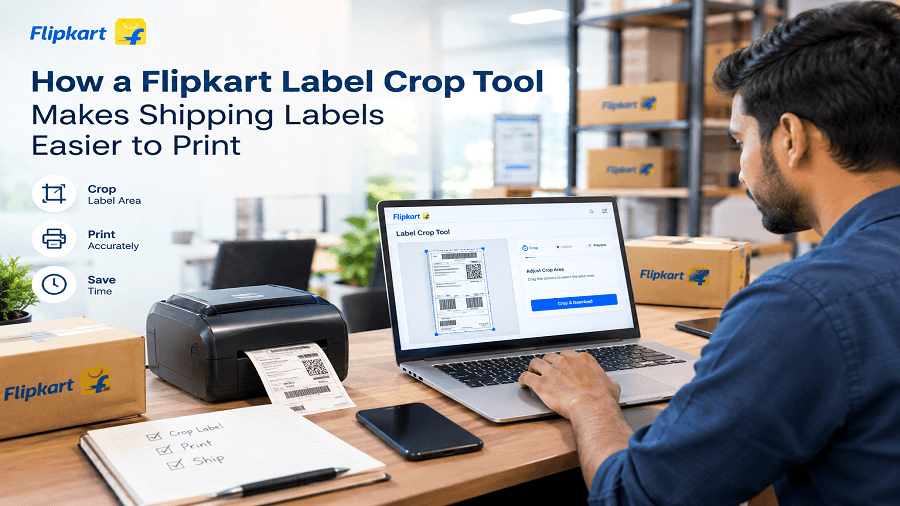
Printing shipping labels is a routine part of managing Flipkart orders, but preparing labels from PDF files can sometimes take extra time. Sellers may need to remove unnecessary page areas, adjust the label layout, select the right printer format, and prepare multiple copies before dispatch.
A Flipkart Label Crop Tool simplifies this process by helping sellers crop shipping-label PDFs into a cleaner, print-ready format. Instead of manually editing every label, sellers can prepare the required label area and download a PDF that is easier to print.
For sellers handling regular shipments, a simple label-cropping workflow can make order fulfillment more organized and convenient.
What Is a Flipkart Label Crop Tool?
A Flipkart Label Crop Tool is an online utility that helps sellers crop Flipkart shipping-label PDFs into a suitable format for printing.
When a shipping PDF contains extra page space or content that is not required for the physical label, cropping can make the output more practical for printing. Depending on the printing setup, sellers may prepare labels for a label printer or A4 printer.
The basic process is straightforward:
Upload the Flipkart label PDF.
Select the appropriate printing format.
Set the number of copies required.
Process the label.
Download the cropped PDF.
Print the resulting label.
This approach can reduce unnecessary manual PDF editing during shipment preparation.
Why Flipkart Shipping Labels Can Be Difficult to Print
A shipping label needs to contain the information required to identify and process a package. However, the original PDF layout may not always match the physical printing setup used by a seller.
Common challenges include:
Extra blank space around the label
PDF pages that are larger than the required label
Different requirements for A4 and label printers
Manually cropping PDF pages
Preparing several labels for dispatch
Maintaining consistent label formatting
Repeating the same editing process for multiple shipments
For sellers processing many orders, these small tasks can add unnecessary steps to the daily workflow.
A Flipkart shipping label cropper provides a simpler way to prepare the label before sending it to the printer.
How a Flipkart Label Crop Tool Makes Printing Easier
The main purpose of a Flipkart shipping label crop tool is to make the PDF more suitable for printing. Here are several ways it can help.
1. Removes Unnecessary PDF Areas
A shipping-label PDF can contain areas that are not needed on the physical label. Cropping focuses the output on the relevant label section.
This can create a cleaner document and reduce wasted printable space.
2. Makes Labels Easier to Prepare
Manual PDF editing can require opening the document in an editor, adjusting the page, checking the crop, and exporting another file.
A dedicated Flipkart label crop workflow brings these steps into a focused tool, making label preparation easier for sellers.
3. Supports Different Printing Setups
Sellers may use different printers depending on their order volume and packaging process.
A useful label tool can provide options for formats such as:
Label printer
A4 printer
This makes it easier to prepare shipping labels according to the seller's existing printing setup.
4. Helps Prepare Multiple Copies
Some shipments or workflows may require multiple copies of a label. A label-cropping tool can allow sellers to specify the required number of copies before downloading the output.
This avoids repeatedly preparing the same PDF manually.
5. Creates a Print-Ready PDF
After processing, the cropped label can be downloaded as a PDF for printing.
Having a dedicated output file can make it easier to review the label before sending it to a printer.
Flipkart Label PDF: From Download to Printed Label
A typical workflow starts with a Flipkart label PDF generated through the seller's shipping process.
Instead of immediately sending the original PDF to a printer, sellers can use a cropping tool to prepare the document.
The workflow looks like this:
Flipkart label PDF → Upload → Select printer format → Choose copies → Crop/process → Download PDF → Print
This simple process can help separate label preparation from label printing, giving sellers a more organized workflow.
Flipkart A4 Label Printing vs. Label Printer Printing
The printer used for shipping labels can affect how the PDF should be prepared.
Flipkart A4 Label Printing
A4 printers are widely used by sellers who print documents and labels on standard A4 paper. Preparing the label specifically for this format can make the printed document easier to handle.
Label Printer
Thermal and other dedicated label printers are commonly used when sellers want a compact label format. A cropped label can be prepared according to the selected label-printer option.
The right choice depends on the seller's packaging setup, printer, label material, and order volume.
What Is a Flipkart Label Cutter?
The term Flipkart label cutter can refer to a tool or workflow used to separate the required shipping-label area from a larger PDF page.
Instead of physically cutting a printed sheet after printing, digital cropping prepares the label area before printing.
A Flipkart shipping label cutter can therefore be understood as a digital PDF-cropping solution that helps sellers create a more suitable printable label.
Digital cropping is particularly useful when the original shipping document contains additional page space that does not need to appear on the final label.
Who Can Use a Flipkart Label Crop Tool?
A Flipkart label cropping tool can be useful for different types of ecommerce sellers, including:
Small Flipkart sellers
Home-based sellers
Growing online stores
High-volume sellers
Sellers using thermal label printers
Sellers using A4 printers
Ecommerce fulfillment teams
Businesses processing multiple daily shipments
The benefit is especially practical for sellers who frequently download, prepare, and print shipping labels.
How to Use a Flipkart Shipping Label Cropper
Using an online Flipkart shipping label cropper can be simple.
Step 1: Prepare Your Label PDF
Download the required Flipkart shipping-label PDF through your normal seller workflow.
Step 2: Upload the PDF
Open the label-cropping tool and upload the PDF that needs to be prepared.
Step 3: Select the Printing Format
Choose the relevant output option, such as a label printer or A4 printer, depending on your setup.
Step 4: Select the Number of Copies
Enter the number of copies you need.
Step 5: Process the Label
Allow the tool to crop and prepare the label according to the selected settings.
Step 6: Download and Print
Download the resulting PDF, check the output, and send it to your printer.
This workflow can be faster and more convenient than manually editing PDF pages for every shipment.
Benefits for Flipkart Sellers
A dedicated Flipkart shipping label crop tool can provide several practical benefits:
Less manual editing: Sellers do not need to repeatedly adjust PDF pages in a general-purpose editor.
Cleaner printing: Cropping focuses the output on the required label area.
Flexible printer options: Sellers can prepare labels for different printing formats.
Simpler order fulfillment: Label preparation becomes a separate, repeatable step in the shipping workflow.
Convenient PDF output: The processed label can be downloaded and reviewed before printing.
Better workflow consistency: Using the same process for shipments can help maintain a more predictable printing routine.
Why Simple Label Preparation Matters for Ecommerce Sellers
Shipping is one of the many repetitive tasks involved in ecommerce order fulfillment. Even a small amount of manual work can become inconvenient when repeated across many orders.
A streamlined label workflow can help sellers spend less time adjusting documents and more time handling packing, dispatch, inventory, and customer orders.
The goal is not to add another complicated process. It is to make an existing task—preparing shipping labels—simpler and more consistent.
Use GenImager to Crop Flipkart Shipping Labels
GenImager provides an easy-to-use Flipkart Label Crop Tool for sellers who want to prepare their shipping labels before printing.
You can upload your compatible Flipkart label PDF, choose the appropriate printer format, select the required copies, and download the processed PDF.
Whether you use Flipkart A4 label printing or a label printer, GenImager can help simplify the label-preparation step.
Ready to make Flipkart label printing easier? Try the GenImager Flipkart Label Crop Tool and prepare your shipping labels in a few simple steps.
Frequently Asked Questions
1. What is a Flipkart Label Crop Tool?
A Flipkart Label Crop Tool is an online utility that helps sellers crop Flipkart shipping-label PDFs into a more suitable format for printing. It can help prepare labels for supported printer formats such as label printers and A4 printers.
2. Can I use a Flipkart Label Crop Tool for A4 printing?
Yes, when the tool provides an A4 printing option. GenImager's Flipkart Label Crop Tool includes an A4 printer option for preparing supported labels.
3. Can I prepare multiple Flipkart label copies?
A label-cropping workflow can support multiple copies when the tool provides a copy-selection option. GenImager's tool allows users to specify the required number of copies before processing.
4. Why should I crop a Flipkart shipping label before printing?
Cropping can remove unnecessary areas of the PDF and create a more focused printable label. This can make the printing process cleaner and easier to manage.
5. How can I make Flipkart shipping label printing easier?
Start with a compatible Flipkart label PDF, use a dedicated label-cropping tool, select the appropriate printer format, choose the required copies, download the processed PDF, and review it before printing.