How to Compress a PDF to 100 KB, 200 KB, 500 KB or 1 MB Online
PDF files are widely used for submitting documents, sharing reports, sending certificates, and completing online applications. However, large PDF files can cause problems when a website or application accepts only files below a specific size limit. You may need to compress a PDF to 100 KB, 200 KB, 500 KB or 1 MB before uploading it.
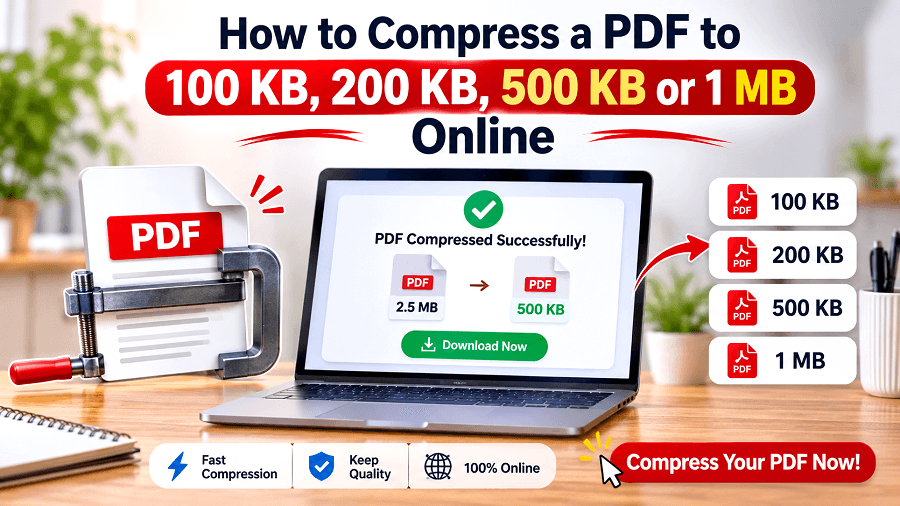
PDF files are widely used for submitting documents, sharing reports, sending certificates, and completing online applications. However, large PDF files can cause problems when a website or application accepts only files below a specific size limit. You may need to compress a PDF to 100 KB, 200 KB, 500 KB or 1 MB before uploading it.
Reducing a PDF file size does not have to be complicated. An online PDF compressor can help you reduce the size of documents without installing additional software. The important thing is to choose an appropriate compression level while keeping the text and images readable.
In this guide, you will learn how to compress PDF files to specific sizes online, which compression size to choose, and how to avoid common quality problems.
Why Do You Need to Compress a PDF to a Specific Size?
PDF compression helps reduce the storage space required by a document. It is particularly useful when websites, email services, or online platforms enforce file size restrictions.
Here are some common situations where reducing PDF size becomes necessary:
Government applications: Some online forms require identity documents, certificates and other supporting files within a specified size limit.
Job applications: Recruitment portals may restrict the size of resumes, educational certificates and scanned documents.
College admissions: Students may need to upload mark sheets, application forms and other academic records.
Scholarship applications: Smaller PDFs make it easier to meet document submission requirements.
Email attachments: Compressing documents helps keep attachments within email size limits.
Document sharing: Smaller files are generally quicker to upload, download and share.
For example, if an application accepts PDF files up to 200 KB but your scanned certificate is 1.5 MB, you need to reduce its size before submitting it.
How to Compress a PDF to 100 KB, 200 KB, 500 KB or 1 MB Online
The easiest way to reduce PDF file size is to use an online PDF compressor. GenImager provides a PDF compression tool that supports target-size compression, allowing users to work toward specific file size requirements.
Follow these steps to compress your document.
Step 1: Open an Online PDF Compressor
Visit the GenImager PDF Compressor using your browser.
An online PDF compressor lets you reduce document size without needing to install desktop software.
Step 2: Upload Your PDF File
Select the PDF document you want to compress from your device.
Before uploading, check the original file size. For example, if your document is 2 MB and your required limit is 500 KB, you need to reduce it considerably.
Step 3: Select Your Target File Size
Choose the required compression size based on your application or sharing requirements.
Depending on the available settings, you can select options such as:
100 KB
200 KB
500 KB
1 MB
Custom file size
Choose the target size carefully. Very large compression may reduce image clarity, especially when the document contains scanned pages or photographs.
Step 4: Compress and Download Your PDF
Start the compression process and wait for the tool to generate the smaller document.
Once processing is complete, download the compressed PDF. Open the downloaded file and check that all pages, text, signatures, and important details remain readable.
How to Choose the Right PDF Compression Size
The correct PDF size depends on the upload requirements and the type of document you are submitting.
Compress PDF to 100 KB
A 100 KB PDF is useful when an online application has a very strict file size limit. It may be required for certain small certificates, forms, or scanned documents.
However, compressing a multi-page document or an image-heavy PDF to 100 KB can significantly affect clarity. Always check the portal's requirements and review the compressed document before uploading it.
Compress PDF to 200 KB
A 200 KB file size is commonly useful when submitting individual certificates, mark sheets, and supporting documents.
For example, if a scanned educational certificate is 800 KB, reducing it to 200 KB can make it easier to meet a portal's upload restriction. Check that names, dates, registration numbers and signatures remain visible.
Compress PDF to 500 KB
A 500 KB PDF can be suitable for forms, short reports and documents containing multiple pages.
It provides more room than a 100 KB or 200 KB limit, which can help preserve document readability. However, the result depends on the original file, its images, and the compression method.
Compress PDF to 1 MB
A 1 MB PDF is useful when an application allows a slightly larger document but still requires a reduced file size.
It can be a practical choice for image-containing reports, scanned documents, and multi-page forms. If your original file is several megabytes, reducing it to 1 MB may help balance file size and visual quality.
Tips to Reduce PDF File Size Without Losing Quality
You can improve compression results by preparing your document before reducing its size.
Here are some practical tips:
Use original digital documents: Exporting a document directly to PDF is often better than scanning a printed copy.
Avoid oversized images: High-resolution images can increase PDF file size unnecessarily.
Remove unwanted pages: Delete blank pages and unnecessary content before compression.
Choose a suitable compression level: Avoid selecting an extremely small target when image clarity is important.
Check readability: Review small text, photographs, signatures, and important information after compression.
Keep the original file: Save an uncompressed copy before making changes, especially when working with official documents.
Remember that compressing a PDF without losing quality depends on the document's original structure and the compression technique used. Not every file can reach a very small size while preserving all its original details.
Common PDF Compression Problems and How to Fix Them
Even after using a PDF compressor, you may experience a few problems. Understanding their causes can help you choose a better approach.
1. PDF file is still larger than the required size
The document may contain high-resolution images, scanned pages, or unnecessary embedded content. Try removing unwanted pages or using a stronger compression setting.
2. Text becomes blurry after compression
This can happen when the compression process reduces image resolution too much. Use a less aggressive setting and check whether the original document is available in digital format.
3. Scanned PDFs remain large
Scanned documents often contain full-page images rather than selectable text. Reducing image resolution or removing unnecessary pages may help decrease the file size.
4. Images lose clarity
Image-heavy PDFs may require a balance between file size and image quality. Avoid forcing a very small target when photographs or diagrams contain important details.
5. PDF text is no longer selectable
Some image-based compression methods convert document pages into images. As a result, text may no longer be searchable or selectable. If searchable text is important, retain the original PDF or use a compression method that preserves its text layer.
Frequently Asked Questions About PDF Compression
1. How can I compress a PDF to 100 KB online?
Open an online PDF compressor, upload your document, and select a 100 KB target if supported. Start compression and download the result. Check the final file size and make sure the text, signatures, and important details remain readable.
2. Can I compress a PDF to 200 KB without losing quality?
It depends on the original document. Text-based PDFs may compress with little visible change, while scanned documents and image-heavy files may lose clarity. Always review the compressed version before submitting important documents.
3. How do I reduce a PDF to 500 KB?
Upload your PDF to an online compression tool, select the 500 KB target if available, and process the document. Once compression finishes, download the file and verify that it meets the required size limit.
4. How can I compress a PDF to 1 MB for online applications?
Use a PDF compressor that supports target-size compression. Upload your document, choose 1 MB, and download the compressed version. Check the application's maximum upload size and confirm that your document remains readable.
5. Does compressing a PDF affect its quality?
PDF compression can affect image resolution, text appearance, and document structure, depending on the method used. Lossless compression generally preserves the original content, while image-based compression can reduce clarity or remove selectable text.
Final Thoughts
Compressing a PDF to 100 KB, 200 KB, 500 KB or 1 MB can make online applications, document sharing and email attachments easier to manage. The right target size depends on the platform's upload requirements and the type of document you are working with.
Always check the compressed PDF before submitting it, particularly when it contains certificates, signatures, identification details, or scanned images.
Ready to Reduce Your PDF File Size?
Don't let large PDF files slow down your document submissions or sharing process. With GenImager, you can compress PDF files online and choose a target size that matches your requirements.