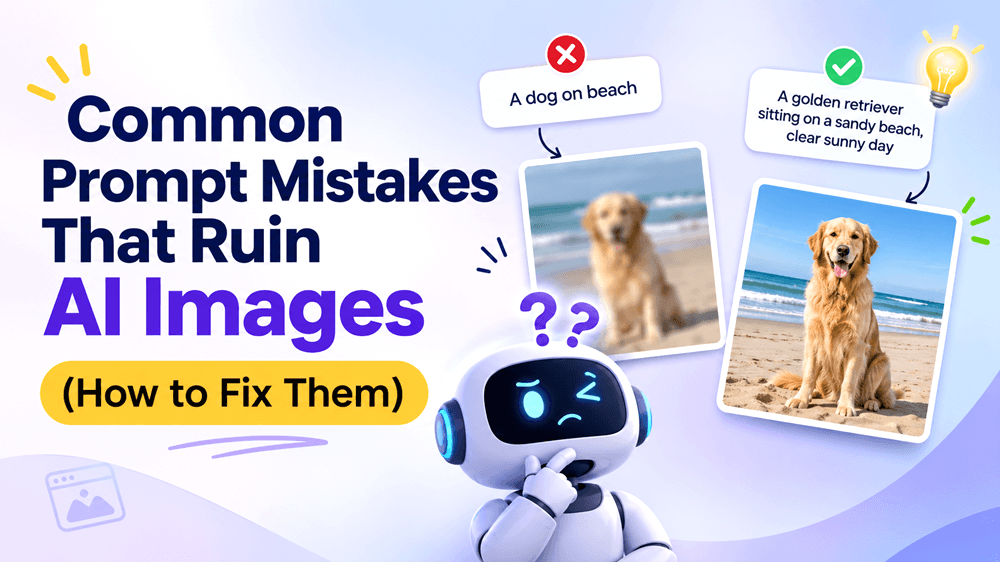
Common Prompt Mistakes That Ruin AI Images (How to Fix Them)
AI image generators can turn an idea into a polished visual, but the result depends heavily on the instructions you provide. If your images look generic, miss key details, or feel different from what you imagined, your prompt may be the problem.
AI image generators can turn an idea into a polished visual, but the result depends heavily on the instructions you provide. If your images look generic, miss key details, or feel different from what you imagined, your prompt may be the problem.
You do not need to be a professional designer to improve your results. You need clear instructions, useful visual details, and a willingness to refine. Here are 10 common AI image prompt mistakes and practical ways to fix them.
1. Writing Prompts That Are Too Vague
A prompt like "Create a beautiful product photo" gives the AI little direction. What product? What background? What lighting?
When details are missing, the generator fills the gaps with its own interpretation.
How to fix it: Describe the subject, setting, and look. Try: "A matte black skincare bottle on a beige stone surface, soft window light, minimal luxury studio photography, front-facing composition."
2. Adding Too Many Ideas at Once
Combining several scenes, styles, and moods can make a prompt confusing. A realistic product photo, watercolor background, cinematic lighting, and cartoon character may compete rather than work together.
How to fix it: Focus on one main concept. Separate essential details from optional styling. If you want different creative directions, generate separate versions instead of squeezing everything into one prompt.
3. Forgetting to Describe Composition
You may get the right subject but an unusable crop, awkward placement, or distracting background. Composition is especially important for banners, ads, thumbnails, and product visuals.
How to fix it: Explain framing and placement. Use terms such as "centered," "close-up," "wide shot," or "subject on the right." For example: "A coffee cup on the right side of a wide scene, with empty space on the left for headline text."
4. Mixing Conflicting Art Styles
Photorealistic, anime, 3D renders, watercolor, and hand-drawn illustration describe different approaches. Combining them without a clear purpose can produce inconsistent results.
How to fix it: Choose one primary style and add compatible details. "Photorealistic editorial product photography" gives clearer direction than a list of unrelated styles.
5. Ignoring Lighting and Mood
Lighting changes the entire feeling of an image. Harsh overhead light creates a different result from soft studio lighting yet prompts often describe the subject and forget illumination.
How to fix it: Add a lighting direction and mood, such as "soft morning sunlight," "dramatic side lighting," or "warm golden-hour glow." Match the choice to the image's purpose.
6. Using Abstract Words Instead of Visual Details
Words like "premium," "professional," and "stunning" communicate an intention but do not always explain what the AI should create.
How to fix it: Translate abstract qualities into visible details. For a premium look, describe a restrained color palette, refined materials, clean background, balanced spacing, and soft directional light.
7. Leaving Out Important Constraints
A generated image may add objects, crop a product, alter a reference subject, or include unwanted lettering when the prompt does not specify what to avoid.
How to fix it: State key requirements directly: "Show the entire bottle, keep the label unobstructed, include no extra products, and add no text." When editing an existing image, explain what should change and what must stay the same.
8. Expecting Perfect Text Inside Images
AI-generated text can contain spelling errors, distorted letters, or inconsistent spacing. Detailed poster copy can be difficult to render accurately in one generation.
How to fix it: Keep in-image wording short and specify the exact text, placement, and style. For business graphics, generate the background first and add final headlines in a design editor. Proofread before publishing.
9. Ignoring Reference Images
If you already have a product photo or brand visual, describing everything from scratch may introduce unwanted variation. Text-only prompting may not preserve the details that matter.
How to fix it: Use image-to-image generation when a reference matters. Upload a suitable image and explain both the requested change and the elements to preserve. GenImager supports up to two reference images in its image-editing workflow.
10. Giving Up After the First Generation
Even a strong prompt may need adjustment. Models can interpret the same wording differently, and rewriting everything after each imperfect result makes it hard to know what worked.
How to fix it: Treat prompting as an iterative process. Identify the biggest issue and change one or two details at a time. If the subject is right but the background is wrong, revise only the background.
A Simple Formula for Better AI Image Prompts
Use this checklist before generating:
Subject: What exactly should appear?
Setting: Where is the scene?
Composition: How should it be framed?
Style: Photographic, illustrative, or 3D?
Lighting and mood: What atmosphere should it communicate?
Constraints: What should be included, avoided, or preserved?
Combine the details into one clear instruction:
"A minimalist white wireless speaker on a warm oak shelf in a modern living room, three-quarter product view, soft daylight, realistic commercial product photography, neutral colors, uncluttered background, full product visible, no text."
The goal is not to write the longest prompt. It is to provide the most relevant information in a clear order.
Conclusion: Turn Better Prompts into Better Images
Poor AI images often come from unclear instructions, conflicting styles, missing composition details, or a lack of refinement. Avoiding these common prompt mistakes can help you create visuals that are more consistent, relevant, and ready for real projects.
Ready to put these tips into practice? Try GenImager to turn ideas into AI-generated visuals or refine existing images with reference uploads. Start with a clear prompt, make focused adjustments, and create images that match your vision.