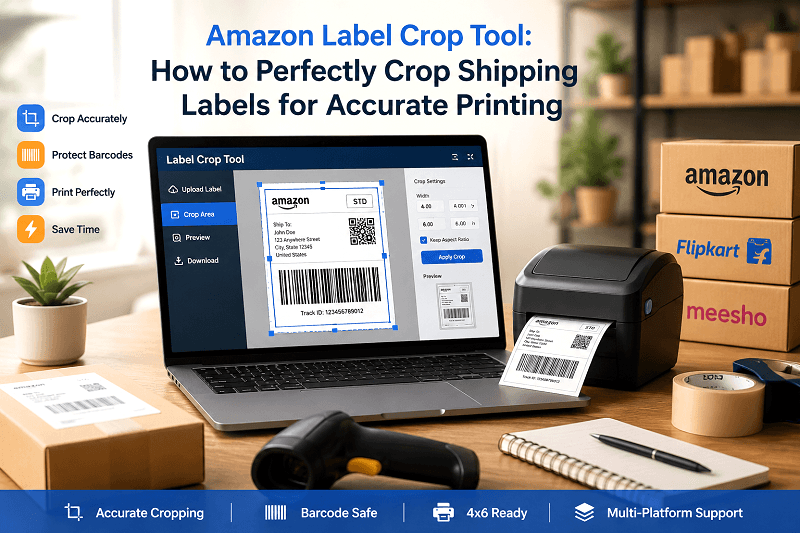
Shipping delays and barcode errors often come from incorrectly cropped labels. Even a small mistake in trimming can lead to scanning failures, wasted packaging time, or delivery issues.
An Amazon label crop tool helps sellers trim and resize shipping labels accurately for flawless printing and faster order fulfillment. Whether you are handling a few orders or bulk shipments daily, proper label formatting is essential.
In this guide, you’ll learn how to crop labels correctly, avoid common mistakes, and optimize them for thermal printers, ensuring your shipping process remains smooth and efficient.
What Is an Amazon Label Crop Tool?
An Amazon label crop tool is a specialized solution designed to trim unnecessary margins and align shipping labels into a print-ready format. It ensures that barcodes, addresses, and essential details remain intact while removing extra white space.
Why Sellers Need Label Cropping
Many sellers face issues with poorly formatted labels. Cropping solves these common challenges:
Misaligned labels cause scanning failures
If a barcode is slightly shifted or clipped, scanners may fail to read it.
Extra margins of waste paper and time
Untrimmed labels consume more space, which increases printing costs and slows down the packaging process.
How It Works
Modern tools like Genimager simplify the entire process:
Upload your shipping label PDF
Automatically detect the ideal crop area
Export a clean, print-ready label
This eliminates manual adjustments and reduces errors significantly.
Common Problems with Amazon Shipping Labels
Before cropping, it’s important to understand the issues that sellers frequently encounter.
1. Incorrect Label Size for Printing
Amazon labels often come in full-page formats, which are not suitable for thermal printers. Without resizing, the label may print too small or get cut off.
2. Barcode Getting Cut or Blurry
Improper cropping can damage the barcode area. This leads to scanning issues during shipping and delivery, causing delays.
3. Extra White Spaces in PDF Labels
Unused margins around labels waste paper and reduce efficiency. Over time, this increases operational costs.
How to Crop Amazon Shipping Labels (Step-by-Step)
Follow this simple process to get accurate results every time:
Step 1: Upload Your Shipping Label
Start by uploading your Amazon shipping label in PDF format into a reliable tool like Genimager.
Step 2: Select Crop Area Precisely
Use the crop tool to define the exact area around the label. Focus on including all essential elements such as:
Barcode
Shipping address
Tracking information
Step 3: Maintain Barcode Safety Zone
Always leave a small margin around the barcode. This ensures scanners can read it without any issues.
Step 4: Download Optimized Label
Once cropped, download the label in a print-ready format. Make sure to preview it before printing.
Tip: Add screenshots of each step to improve user experience and increase engagement.
Optimize Labels for 4x6 Thermal Printing
Thermal printers are widely used by e-commerce sellers for fast and cost-effective shipping.
Why 4x6 Format Matters
The 4x6-inch format is the standard for most shipping carriers. It ensures:
Proper alignment
Clear barcode visibility
Faster printing
Compatible Thermal Printers
Popular thermal printers that support 4x6 labels include:
Zebra printers
TSC printers
Rollo printers
These printers are designed for high-speed label printing.
Adjusting DPI and Alignment
To get the best output:
Set the correct DPI (usually 203 or 300).
Align the label within the print area.
Avoid scaling options like “fit to page.”
Multi-Platform Label Cropping (Amazon, Flipkart, Meesho)
Today’s sellers often operate across multiple platforms. A flexible tool is essential.
1. Flipkart Label Crop Use Case
Flipkart labels also include extra margins and require trimming for proper printing. Cropping ensures clean alignment and reduces errors.
2. Meesho Label Cropping Workflow
Meesho labels may vary in format. A smart crop tool adjusts them into a consistent layout for easy printing.
3. One Tool for All E-commerce Labels
With Genimager, sellers can handle:
Amazon shipping labels
Flipkart order labels
Meesho packaging labels
This unified workflow saves time and simplifies operations.
Manual vs Tool-Based Label Cropping
Here’s a comparison to help you understand the difference:
Feature | Manual Method | Label Crop Tool |
|---|---|---|
Speed | Slow | Fast |
Accuracy | Low | High |
Bulk Processing | No | Yes |
Manual cropping using basic editors is time-consuming and prone to mistakes. A dedicated tool improves efficiency and accuracy.
Benefits of Using an E-commerce Label Crop Tool
Using a smart cropping solution provides several advantages:
1. Faster order processing
Save time by preparing labels quickly.
2. Reduced printing errors
Accurate cropping ensures proper alignment.
3. Better barcode scanning
Maintain readability for smooth delivery.
4. Optimized for bulk shipping
Handle multiple orders efficiently.
Final Thoughts
Accurate label cropping is a small step that makes a big difference in e-commerce operations. From reducing errors to improving shipping speed, the right approach can simplify your workflow.
Instead of relying on manual adjustments, using a smart solution ensures consistency, precision, and efficiency across all your orders.
Ready to fix your label printing issues?
Use the Genimager Amazon Label Crop Tool to crop, resize, and optimize your shipping labels in seconds. Whether you sell on Amazon, Flipkart, or Meesho, get clean, print-ready labels every time and streamline your fulfillment process today.
FAQs
1. How do I crop an Amazon shipping label correctly?
Use a label crop tool to trim margins while keeping the barcode area intact. Always preview the label before printing to ensure alignment and readability.
2. What size should Amazon shipping labels be?
Most sellers use a 4x6-inch format for thermal printers. This size ensures proper compatibility, clear printing, and faster processing during shipping.
3. Can cropping affect barcode readability?
Yes, improper cropping can damage the barcode. Always leave a safe margin around it and avoid cutting too close to the edges.
4. Can I crop Flipkart and Meesho labels using the same tool?
Yes, advanced tools like Genimager support multiple e-commerce platforms, allowing you to crop labels from Amazon, Flipkart, and Meesho in one place.
5. Why is my shipping label printing incorrectly?
Incorrect scaling, margins, or printer settings can cause issues. Ensure your label is properly cropped and formatted before printing.